
A shortcut for every device
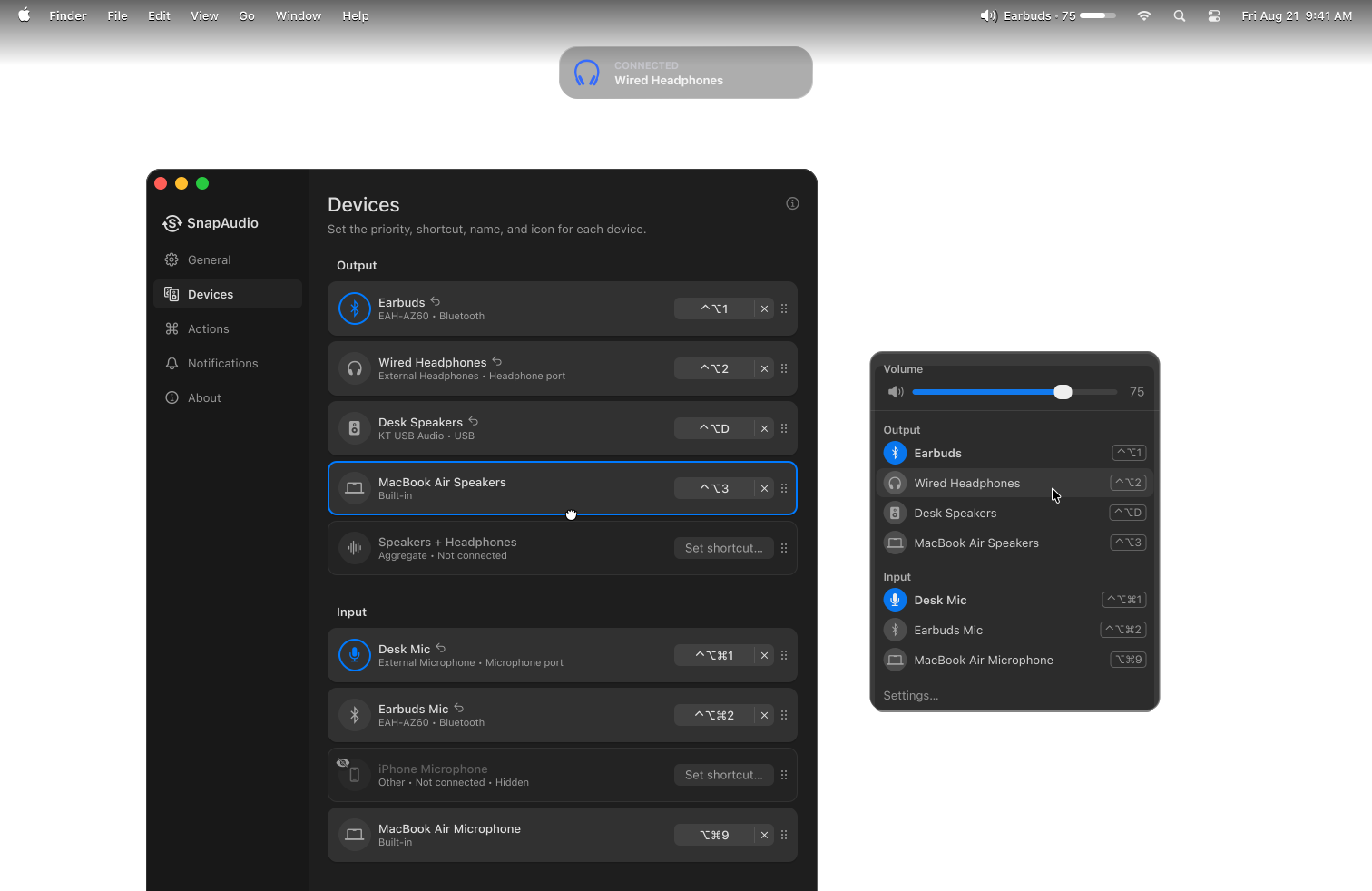
Assign a shortcut to each device. Shortcuts are global: they work while a call, a game, or a presentation is in full screen.
⌃⌥1
⌃⌥2
⌃⌥3
⌃⌥A
New • Menu bar app for macOS
Choose which speakers, headset and microphone your Mac should use when devices connect or disconnect.
 Coming soon
$7 once. No subscription, no account.
What you get
Assign a shortcut to each device. Shortcuts are global: they work while a call, a game, or a presentation is in full screen.
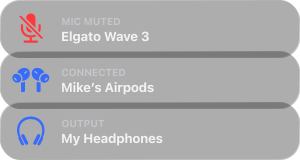
When your output or input changes, a notification names the device now in use.
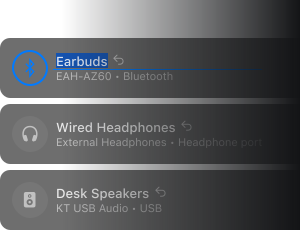
Replace a model number with "Desk speakers." Each device can take a different icon too.
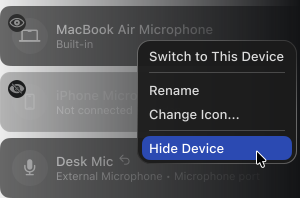
Virtual devices, screen-share endpoints, an unused HDMI output. A hidden device leaves the picker, the shortcut list, and the cycle order.
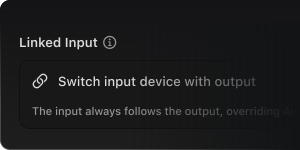
Switch to a headset, and the input switches with it. SnapAudio resolves the pairing for wired jacks, USB devices that expose both directions, and wireless headsets that appear as two devices.
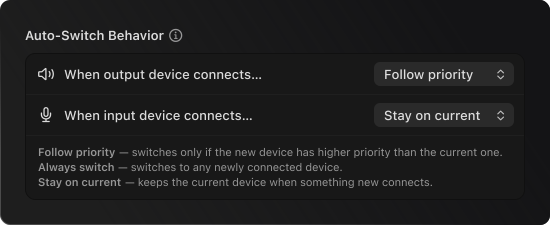
Put your devices in the order you prefer. When one connects or disconnects, SnapAudio uses the highest available device. Output and input have their own rules, so the output can change while the input stays on the device you chose.
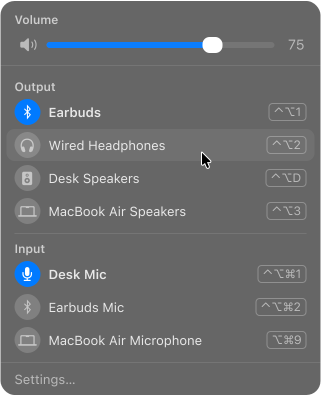
Press a shortcut, and the device list appears at the pointer, even over full-screen apps.
The menu bar can show the device name, volume, mute state, and icon. Turn on only what you need.

The microphone mute happens in the device, not in a meeting app. It covers every app at once and doesn't reset between calls.
Ways to mute
In the menu bar
Ten styles. Drag the slider to see how each behaves.
Volume
Common situations
Headset on, sound still in the speakers, mic still the laptop's. One shortcut moves both, because the input follows the headphones.
⌃⌥2 Output and input, one press
Mute the microphone itself, not the meeting app: same shortcut in every call, whether or not its window is in front. The menu bar shows a badge while your microphone is muted.
⌃⌥M Muted, without leaving the call
No dropping out of full screen to reach the menu bar. The picker opens over the game, at the pointer, inputs included.
⌃⌥A The picker, on top of the game
Voice memo, podcast take, screencast: the wrong input or output means a wasted take. Set both and check the picker before you record.
⌃⌥1 The right input and output, before you press record
Once macOS starts using a headset's microphone, the whole device switches to call mode and the sound quality drops sharply. Pin the input, and only the output follows.
Input set to Stay on current, once, in Settings
Before and after
You press play and nothing comes out.
Today 5 steps
With SnapAudio no steps
It's in the menu bar.

The menu bar shows the device, its icon and its volume, and a crossed-out speaker when it goes silent.
Someone asks you to repeat yourself for the third time. The call is on the built-in microphone, not the one you set up.
Today 4 steps
There is a trick: holding Option while you click the Sound icon lists inputs too.
With SnapAudio 1 step

Inputs get their own shortcuts, exactly like outputs. Or let the microphone follow your headphones.
Your headphones reconnect on their own and the meeting goes into a pair of earbuds you aren't wearing. Or you plug in a monitor and the sound moves to its speakers.
Today every time
With SnapAudio once
Drag your devices into the order you want.
The highest connected device keeps your sound, and a switch you didn't ask for doesn't happen.
The app itself
Built in Swift and SwiftUI with Core Audio, and no third-party code.
No driver, system extension, or helper process. SnapAudio is just an app in your Applications folder.
It responds to device changes instead of constantly checking for them.
No Dock icon and no window to keep open. It can start with your Mac, if you want it to.
No account, no analytics, no network connection at all.
FAQ
A good fit if…
Probably not if…
Control Center works for occasional changes. SnapAudio is for the moments when you need a shortcut, want to switch a microphone too, or want your Mac to follow the device order you chose.
No. The shortcuts are registered with the system directly, which works inside the sandbox. You'll never see a permission prompt, and the app can't read your keystrokes — it's told when its own combinations are pressed, and nothing else.
SnapAudio is a menu bar app. Its icon sits at the top right of the screen, and it opens its settings window on first launch, so the first start isn't silent.
A menu bar manager solves it: Hidden Bar, Ice, and Bartender all collapse the icons you never look at, which leaves room for the ones you use. Hidden Bar and Ice are free. SnapAudio's own item can be narrow too — the device name, the volume percentage and the indicator are separate toggles, so you can leave just the icon.
Yes. Most non-Apple wireless headsets appear to macOS as two separate devices — one for playback, one for the microphone — and SnapAudio pairs them back together so switching to the headset moves your mic too.
No. Per-app volume control needs a system-wide audio driver. SnapAudio works on the current output device instead: it changes the volume, mutes it, and moves your sound to another device.
Any Mac on macOS 15 Sequoia or later, Apple silicon or Intel.
None. Your settings stay in a preferences file on your Mac, and the app never opens a connection to send them anywhere. The full text is on the privacy page.
No. $7 once, through the Mac App Store, on every Mac tied to your Apple Account. Updates are included.
 Coming soon